LiveWebinar YouTube & Vimeo Players
Adding video content is a great way of boosting your webinar’s potential and really getting your audience’s attention. With the YouTube & Vimeo Players Feature you can share numerous videos from your favorite video services without leaving the meeting room.
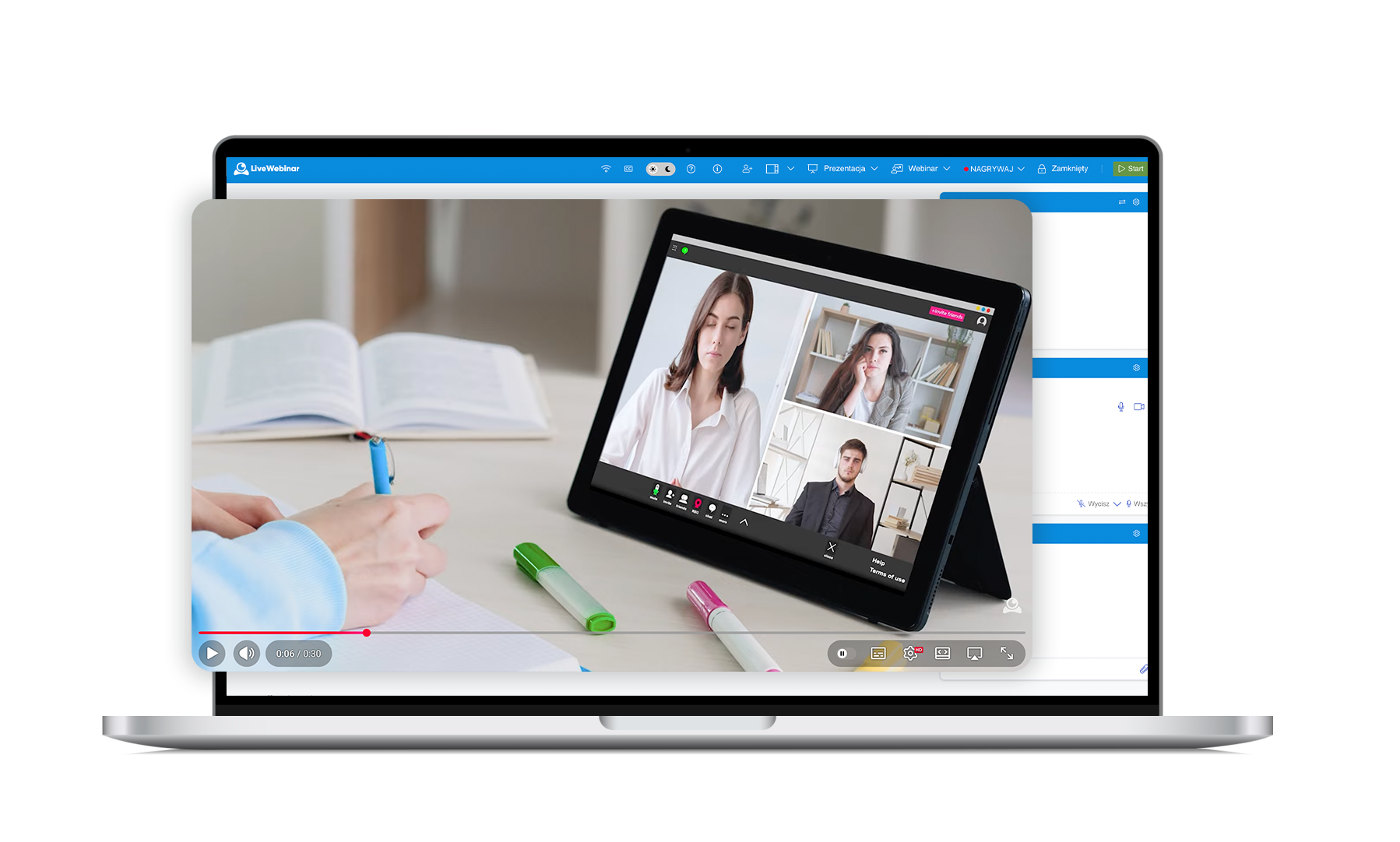


Broadcast without limits
Enrich your webinars with video content without worrying about limits. Enjoy the freedom of sharing many videos– all in high quality, fast speed and played directly from the selected video platforms.

Engage your audience without switching apps.
.



Save videos for your next sessions.

LiveWebinar YouTube & Vimeo Players at LiveWebinar
Share video
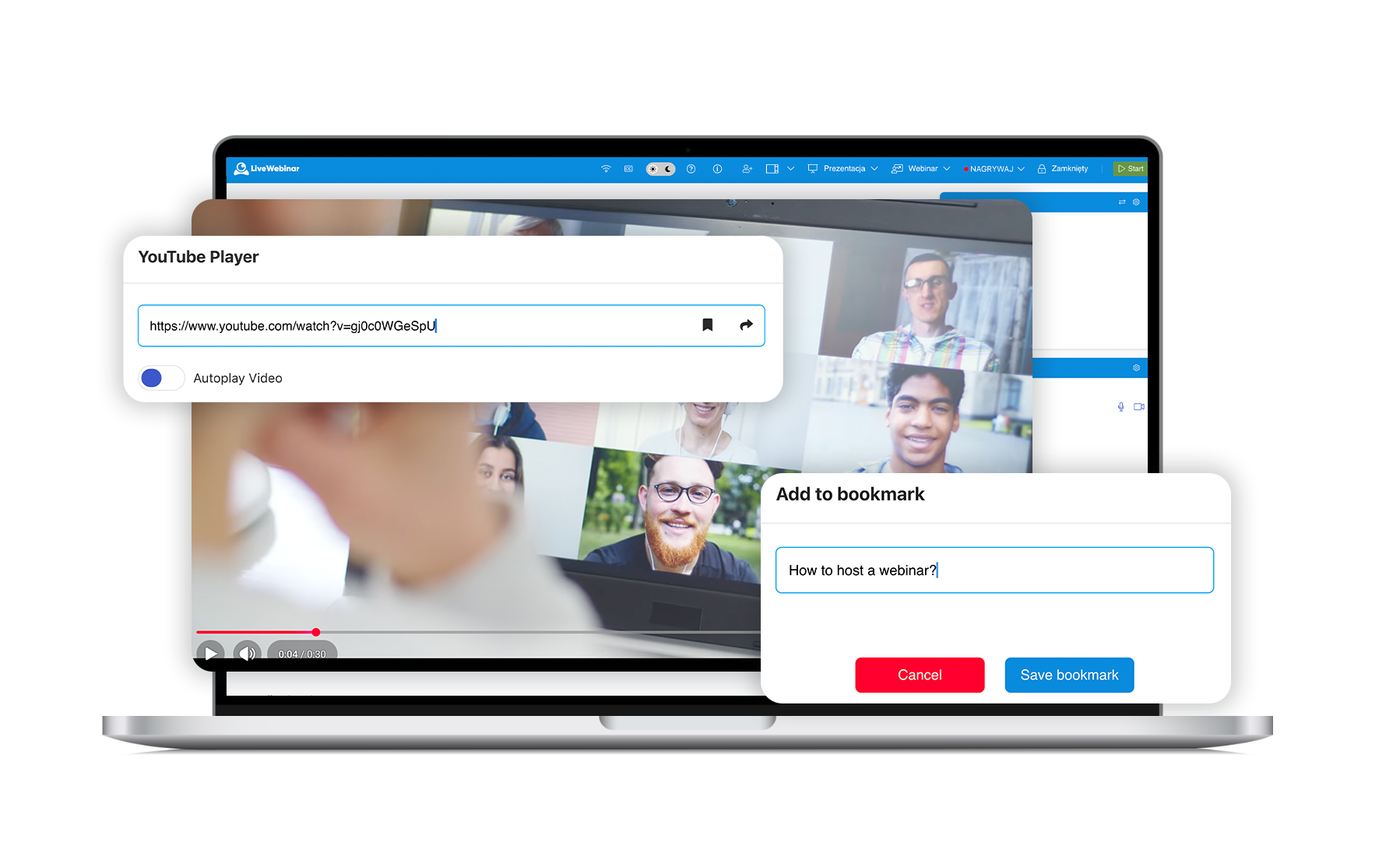
Start your YouTube or Vimeo video transmission within a few seconds by picking the “Share Video” option. Incorporate videos to your presentation without switching between different browser windows. Begin the broadcast by pasting the video’s URL and clicking the “Share” button.
.
Autoplay Video
The “Autoplay Video” option will help you stay on track with your speech. Start videos automatically without remembering to activate them in the content area – simply drag the “Autoplay Video” slider and next click the “Share Video” button.
Control your video sessions
Allow your participants to interact with your broadcast. Give attendees permission to pause and play your videos or share their own visual content. Enable attendees to see only the video in the currently opened window.
s.
Trigger participants’ engagement
Use video content to explain complex ideas or simply entertain your audience. Share videos to raise excitement and let your participants respond instantaneously to your content.
How to Use LiveWebinar YouTube & Vimeo Players at LiveWebinar
See how simple it is:
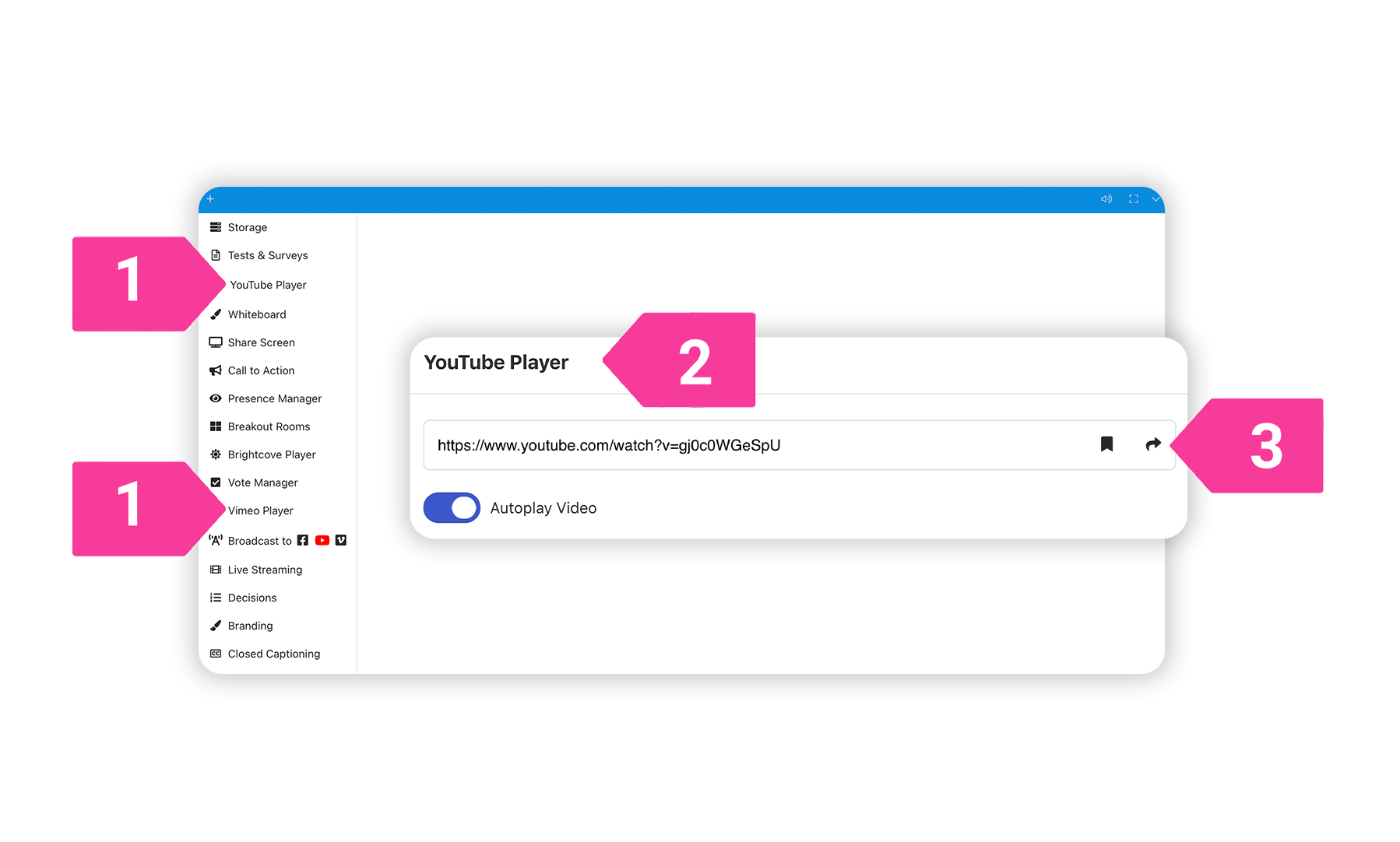
1. Go to the side panel in your webinar room and select Vimeo Player or YouTube Player.
2. Paste the video’s URL.
3. Click the “Share” button.