CATEGORIES
- A free account
- Account assistants
- Account Information
- Affiliate Program
- Appearance
- AppSumo
- Attendee Portal
- Audio & Video
- Branding / Custom / Whitelabel
- Branding Tool
- Break-out Rooms
- Call to Action
- Camera & Microphone
- Capacity & Limits
- Certificates
- Closed captioning
- Decisions - Professional Voting
- E-mail templates
- Event tokens
- Evergreen webinars
- Forms
- How to join meeting on mobiles
- Hubspot Integration
- Integrations
- Language interpretation
- Live Transcription
- Meetings & Webinars
- Other
- Pabbly Connect
- Paid Webinars
- Presence Manager
- Recording
- Registration
- Requirements
- Room Chat
- Screen Sharing
- Session Management
- Statistics & Reports
- Storage
- Streaming
- Sub-Accounts
- Tests & Surveys
- Virtual Backgrounds
- Vote Manager
- Waiting rooms
- Webinar and Meeting Room Features
- Website Presenter
- Whiteboard
- Wordpress plugin
FAQ -> Streaming -> How to Stream on LinkedIn Live using LiveWebinar
How to Stream on LinkedIn Live using LiveWebinar
How to Stream on LinkedIn Live Using LiveWebinar: A Step-by-Step Guide
Looking to maximize your professional reach? Hosting a LinkedIn Live broadcast is one of the most effective ways to engage your B2B audience in real-time. By connecting LiveWebinar to LinkedIn via custom RTMP settings, you can deliver high-quality, stable, and interactive live video content directly to your network.
Whether you are hosting a corporate panel, a product launch, or a virtual workshop, this complete walkthrough will show you exactly how to retrieve your LinkedIn stream credentials and connect them seamlessly inside your LiveWebinar room.
Step 1: Configure Your Live Broadcast on LinkedIn
- Open your web browser and navigate to the LinkedIn Live Studio: https://www.linkedin.com/video/golive/later/
- Log in with your LinkedIn credentials (if prompted).
- Set up and configure your live stream by entering the title, description, scheduled date, and time.
Step 2: Select Region and Retrieve Stream Credentials
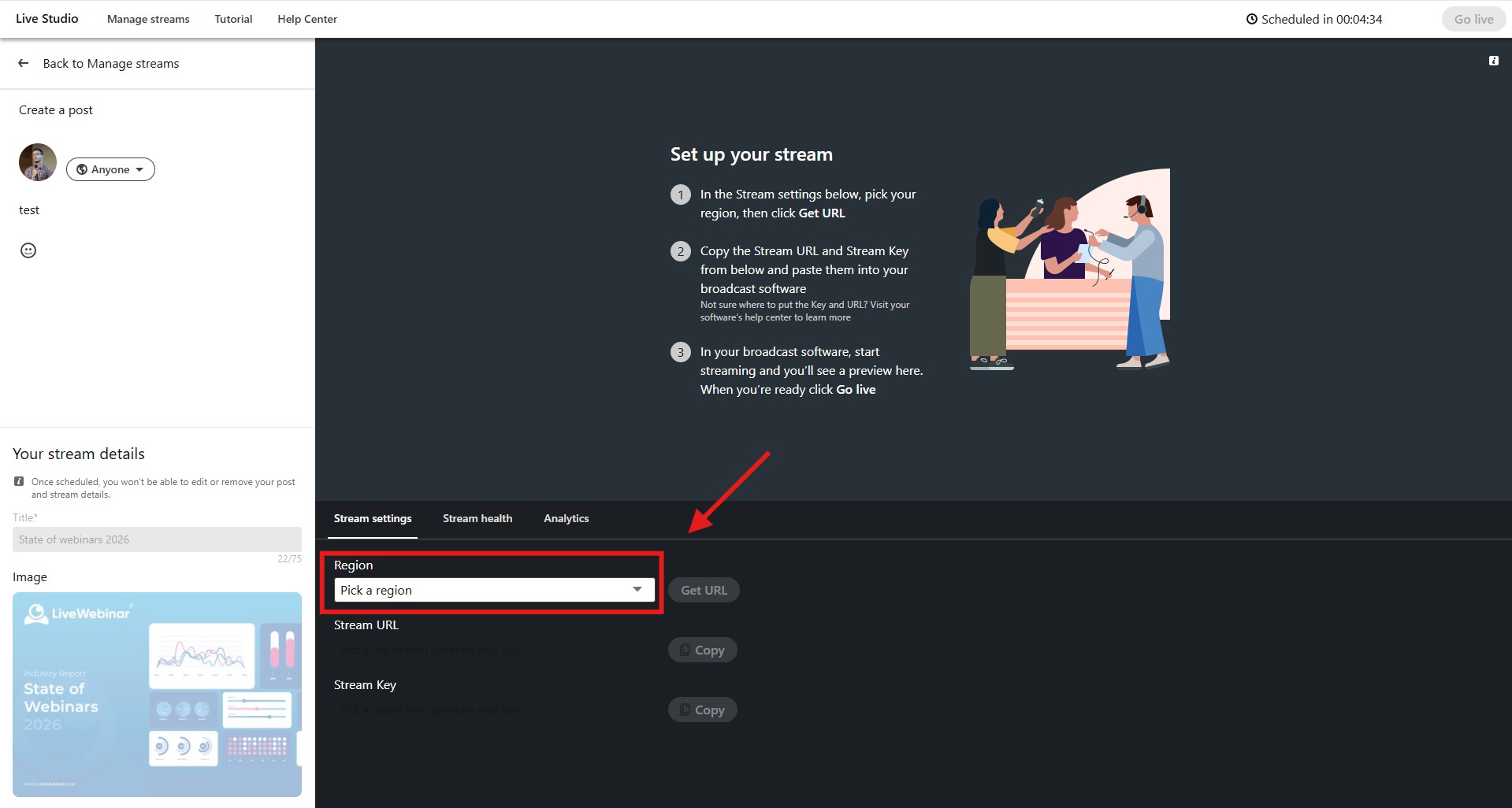
- Go to the details of your scheduled broadcast within LinkedIn Live Studio.
- Select the appropriate Geographical Region closest to your location to ensure optimal performance and low latency.
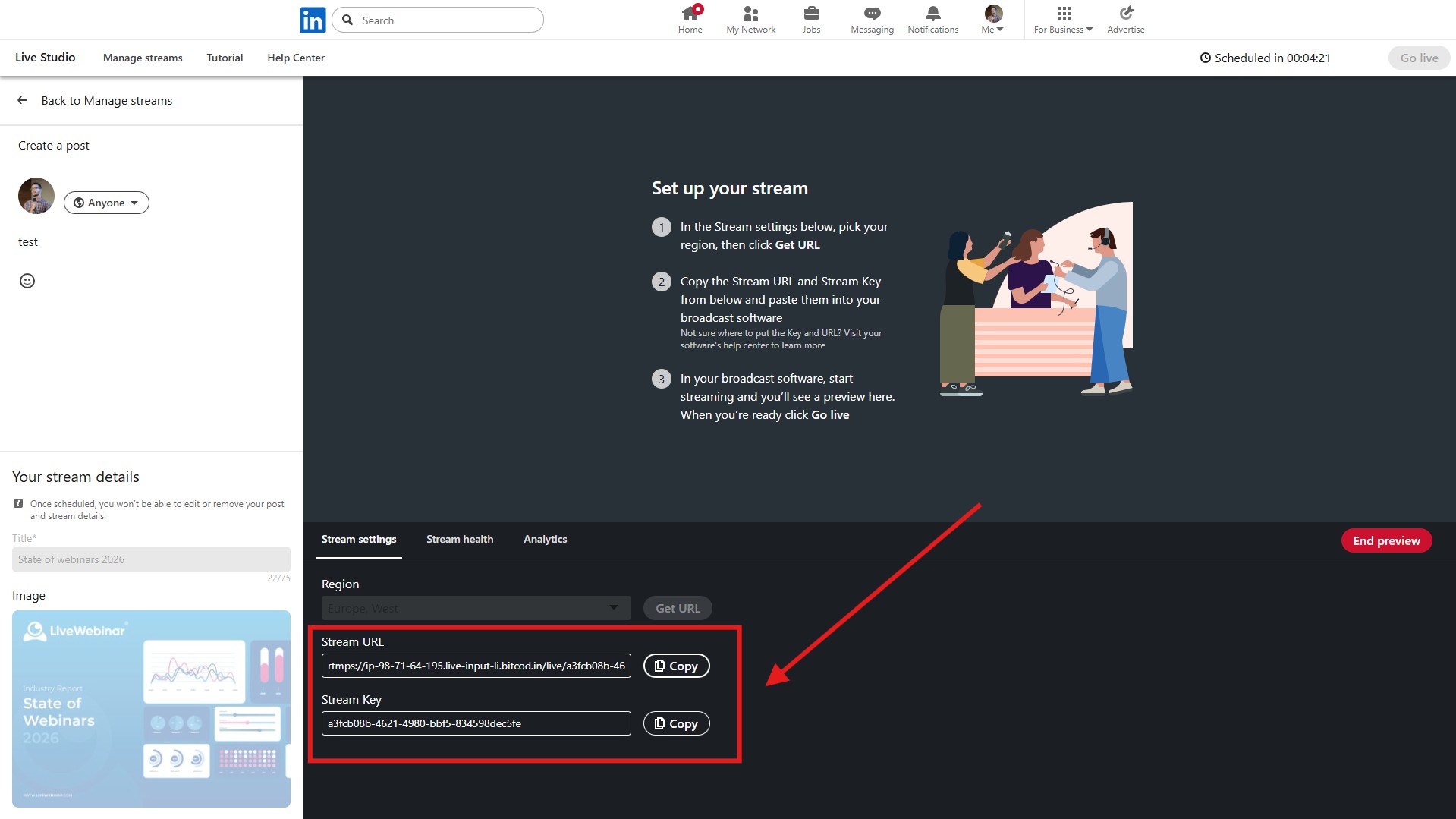
- Locate the stream settings and copy the following information:
- Stream URL
- Stream Key
Step 3: Connect and Broadcast via LiveWebinar
- Log into your LiveWebinar account and enter your webinar room.
- Open the menu and select the Broadcast to social media feature.

- Choose option "Other platforms" and paste the copied Stream URL and Stream Key into the designated fields.

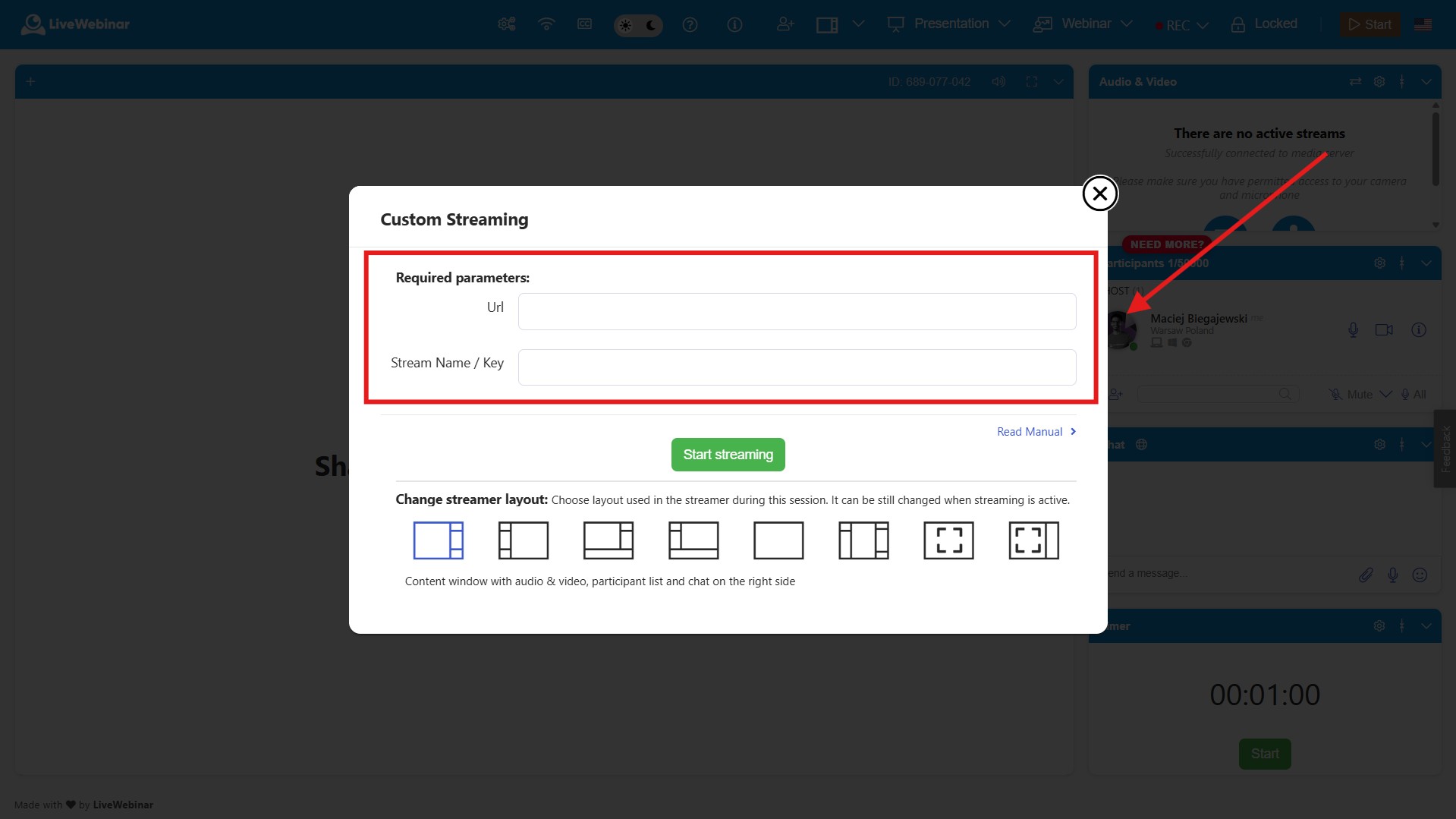
- Save the settings and start broadcasting from LiveWebinar to push your stream live to LinkedIn.