CATEGORIES
- A free account
- Account assistants
- Account Information
- Affiliate Program
- Appearance
- AppSumo
- Attendee Portal
- Audio & Video
- Branding / Custom / Whitelabel
- Branding Tool
- Break-out Rooms
- Call to Action
- Camera & Microphone
- Capacity & Limits
- Certificates
- Closed captioning
- Decisions - Professional Voting
- E-mail templates
- Event tokens
- Evergreen webinars
- Forms
- How to join meeting on mobiles
- Hubspot Integration
- Integrations
- Language interpretation
- Live Transcription
- Meetings & Webinars
- Other
- Pabbly Connect
- Paid Webinars
- Presence Manager
- Recording
- Registration
- Requirements
- Room Chat
- Screen Sharing
- Session Management
- Statistics & Reports
- Storage
- Streaming
- Sub-Accounts
- Tests & Surveys
- Virtual Backgrounds
- Vote Manager
- Waiting rooms
- Webinar and Meeting Room Features
- Website Presenter
- Whiteboard
- Wordpress plugin
FAQ -> Meetings & Webinars -> How to use the Prompter feature in LiveWebinar
How to use the Prompter feature in LiveWebinar
What is Prompter?
Prompter is a presentation tool that displays your notes or script as scrolling text while you present in LiveWebinar. It helps you follow your talking points and stay on track without having to memorize your entire script.
You can choose the text size and scrolling speed to match your reading preferences and speaking pace, and pause or stop the prompter at any time.
How do I use Prompter?
1. Open your webinar room and start presenting.
Enter your LiveWebinar room and begin displaying the presentation you want to use.
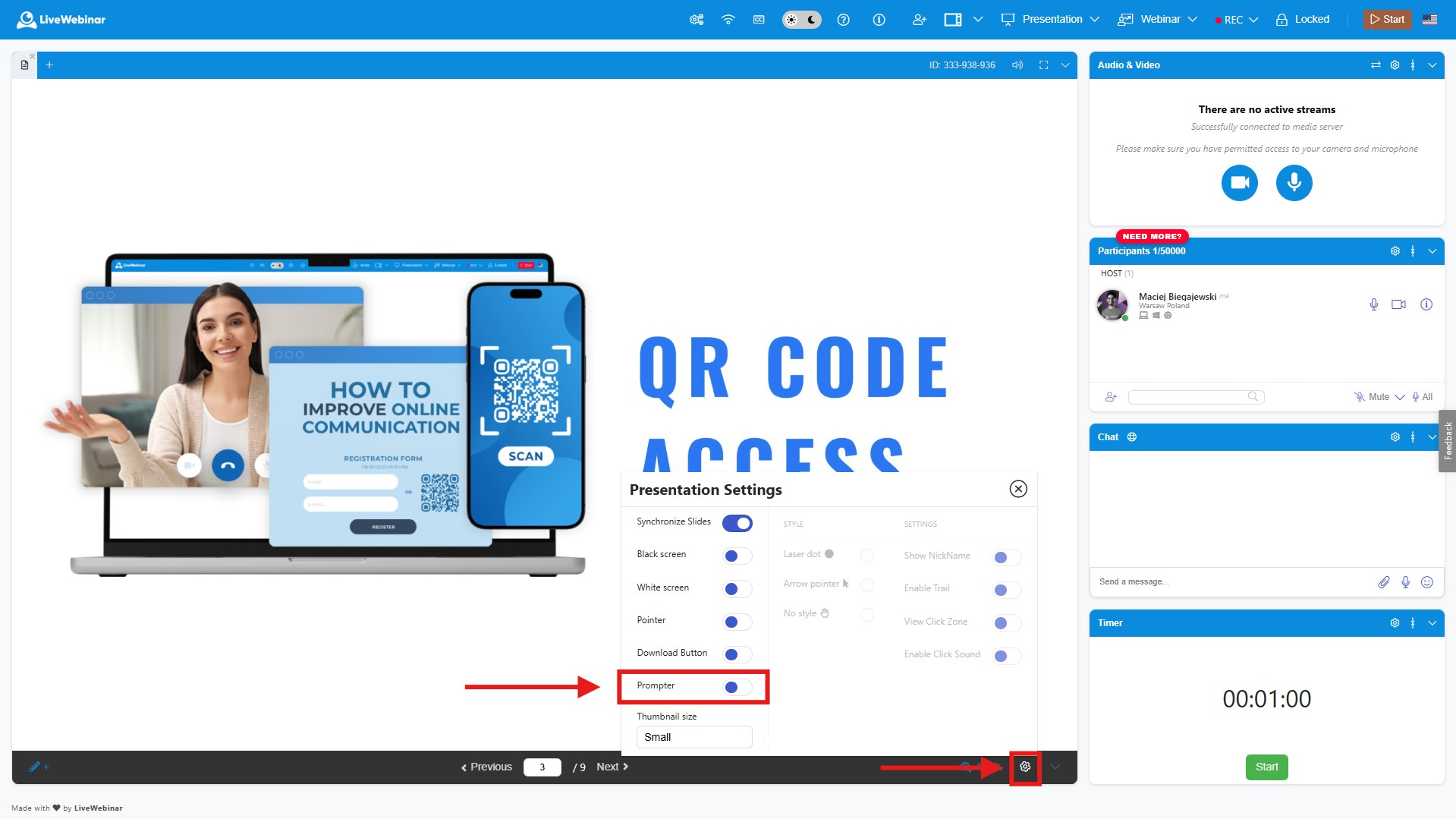
2. Open the presentation settings.
Click the cog icon in the bottom-right corner of the presentation area.
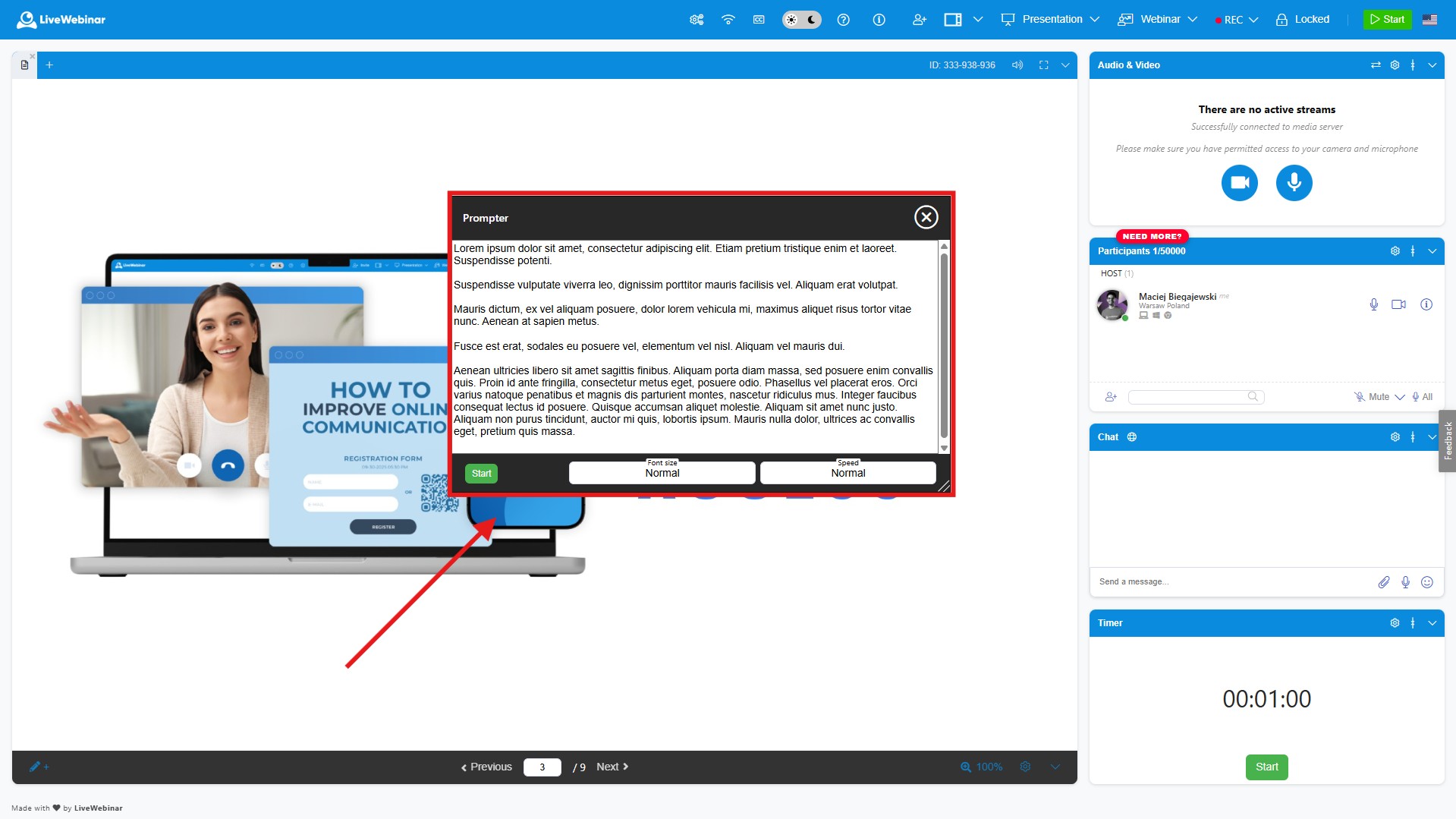
3. Add your notes or script.
Paste the text you want to follow into the pop-up window that appears. You can use a complete script or brief notes covering your key talking points.
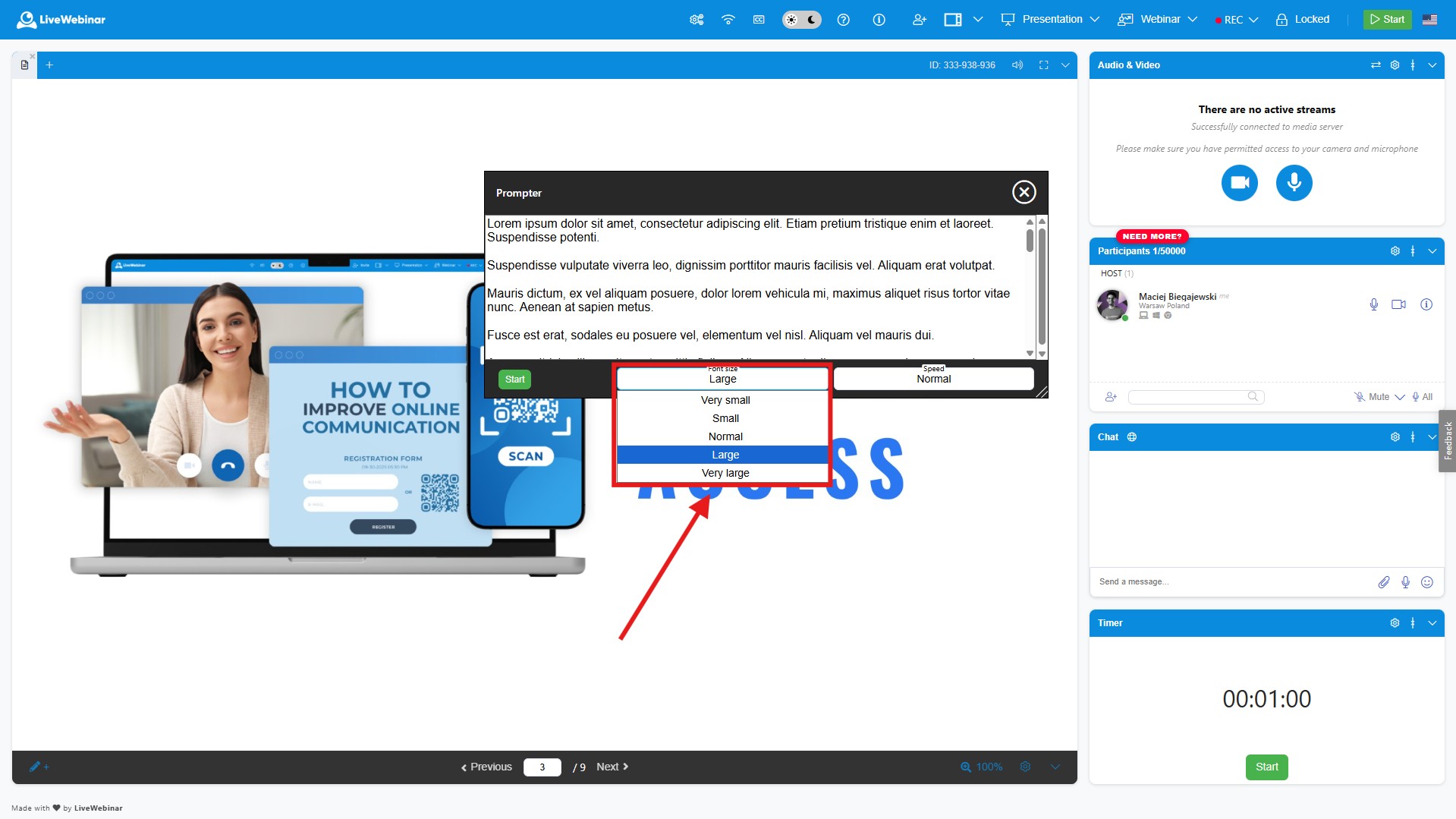
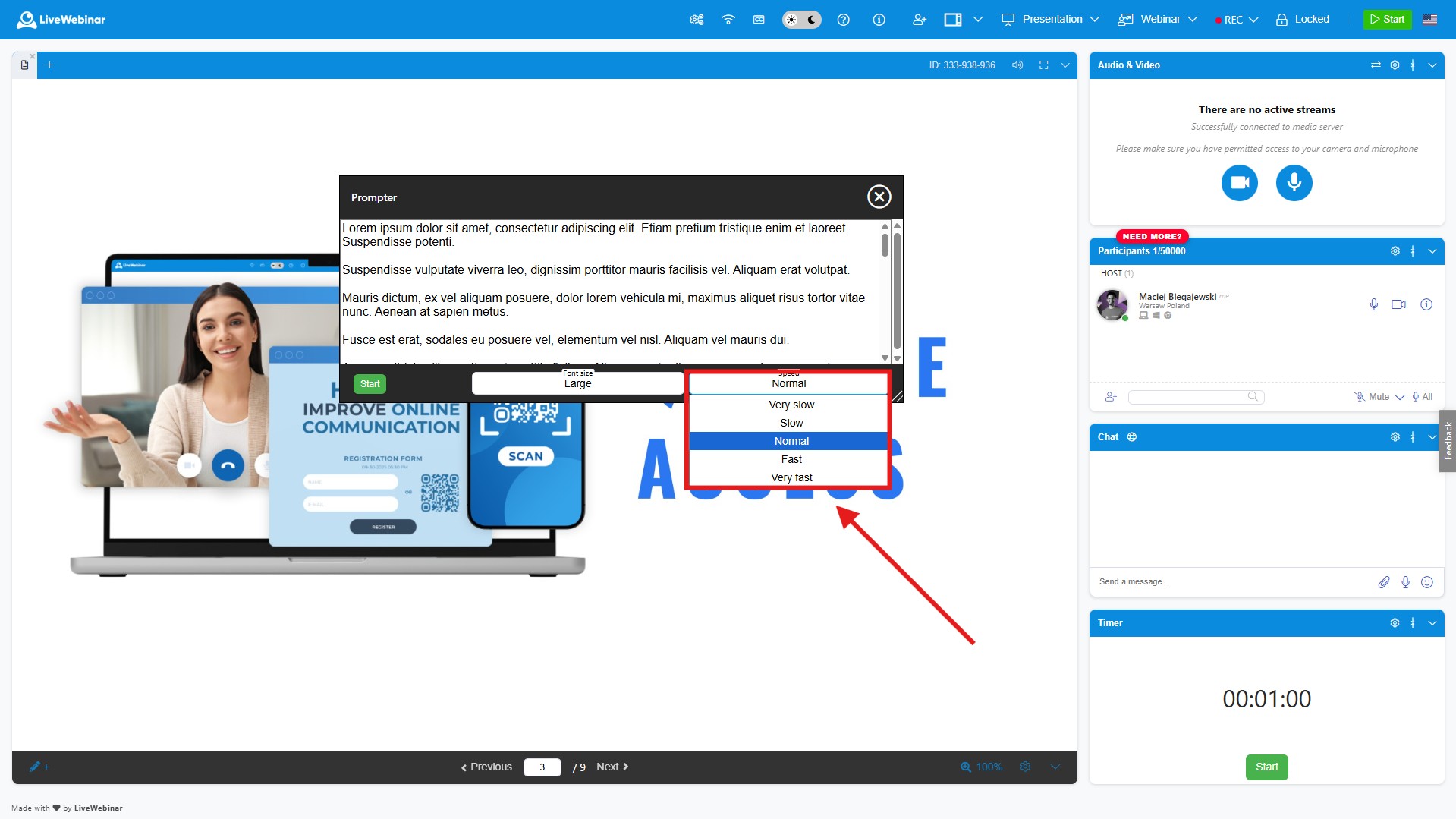
4. Adjust the text size and scrolling speed.
Choose a text size that is comfortable to read, then set the prompter’s scrolling speed to match your speaking pace.
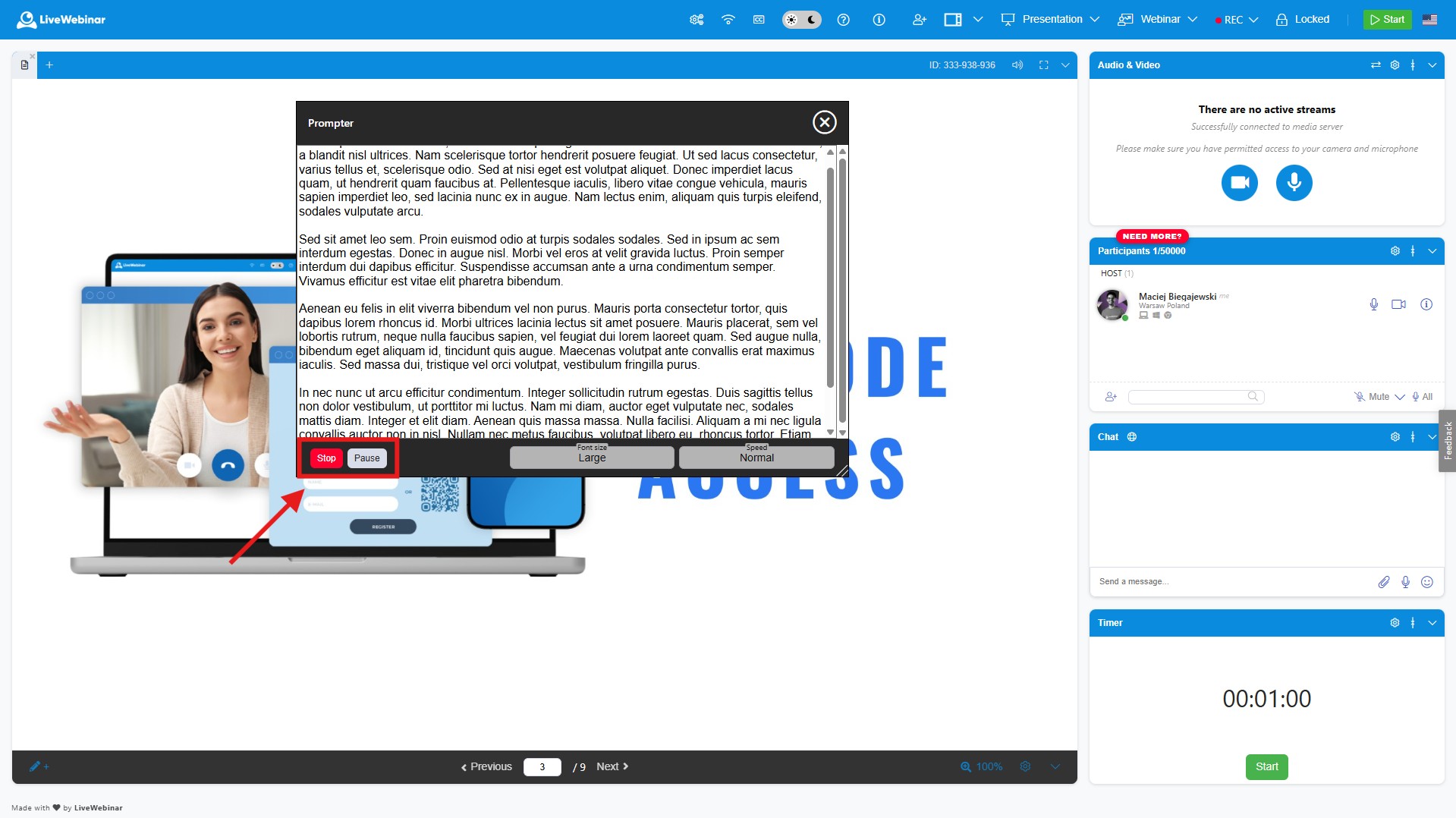
Can I pause or stop Prompter during my presentation?
Yes. You can pause or stop the prompter at any time using its controls. Pause when you need to explain a point, answer a question, or take a break from your script. Stop when you no longer need the prompter.
Tip: Practice with a short section of your script before the webinar to find a comfortable text size and scrolling speed.